How to Convert an Image to Pixel Art Without Blur
Convert a photo or illustration into clean pixel art on an exact grid: what conversion does, which images work best and a step-by-step workflow.
Turning an image into pixel art sounds like resizing it until it looks blocky. That gets you blocks, but rarely pixel art: edges come out soft, blocks end up different sizes and colors bleed into each other. This guide explains what a good conversion actually does and walks through it with real settings. To try it right away, use the free image to pixel art converter in your browser; it runs the same engine as Gridize Desktop.
What converting an image to pixel art really means
A clean conversion makes three decisions:
- A grid. Every output pixel stands for one square cell of the source image, and every cell has the same size.
- A palette. Colors are reduced to a small, deliberate set instead of thousands of near-identical shades.
- Hard edges. When the result is enlarged for display, it is scaled with nearest-neighbor sampling, so each pixel stays a sharp square.
Pixel filters and many AI "pixel art" styles imitate the look without these rules. Zoom in and you will see blocks of uneven sizes, half-pixel steps and gradients inside what should be single pixels. That is fine for a thumbnail, but it breaks as soon as you want to edit, animate or tile the result.
Choose an image that converts well
Conversion removes detail, so start with images that survive it:
- Clear shapes and strong contrast read well at low resolution. Busy textures turn into noise.
- A simple background keeps attention on the subject. Crop tightly before converting.
- Illustrations and renders usually convert more cleanly than photos, because their edges and color areas are already defined.
Step-by-step in Gridize Desktop
1. Open the image
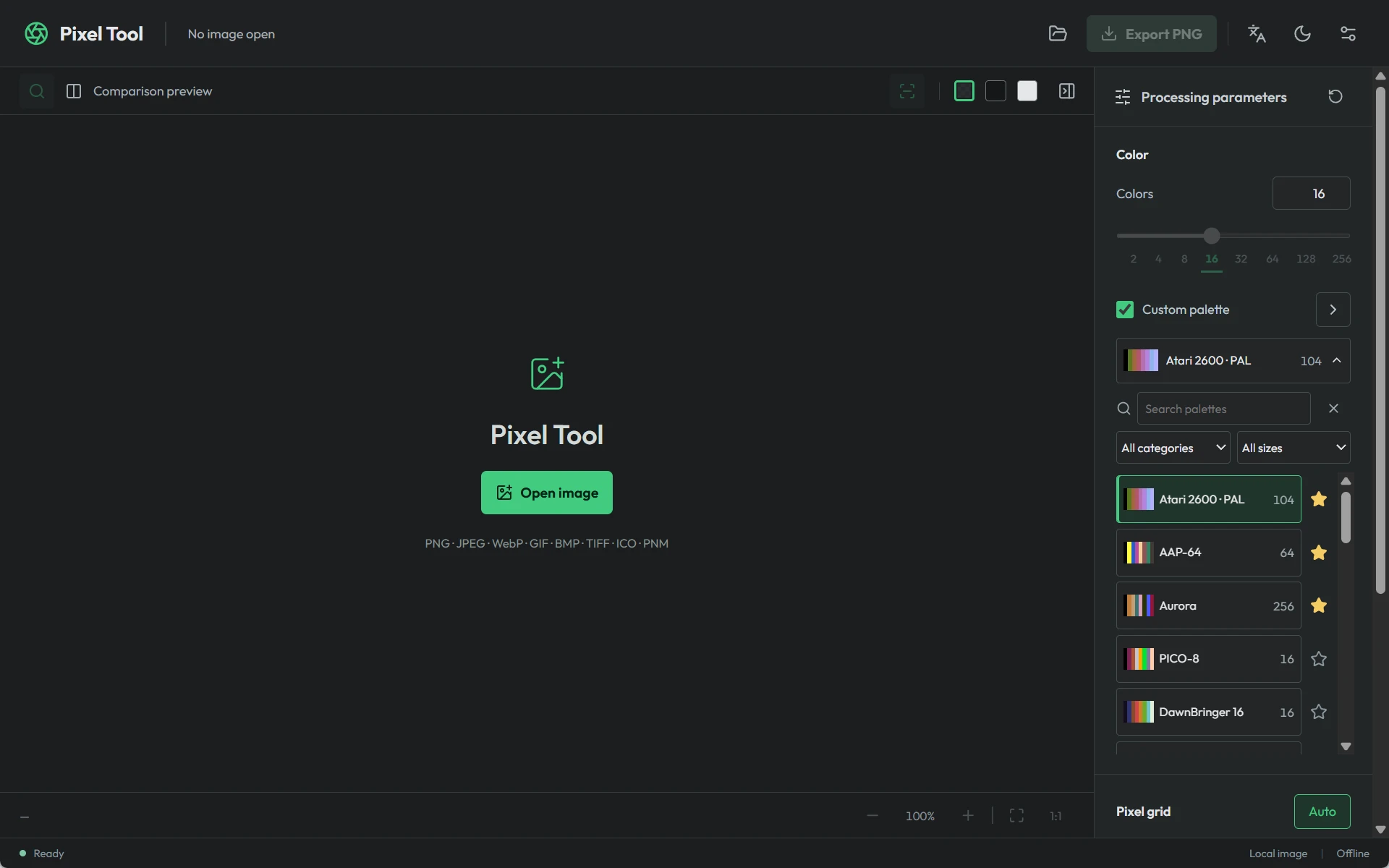
Gridize Desktop is a Windows app that processes images locally; nothing is uploaded. Open a PNG, JPEG, WebP, GIF, BMP, TIFF, ICO or PNM file, or drag it onto the canvas.
2. Set the pixel grid
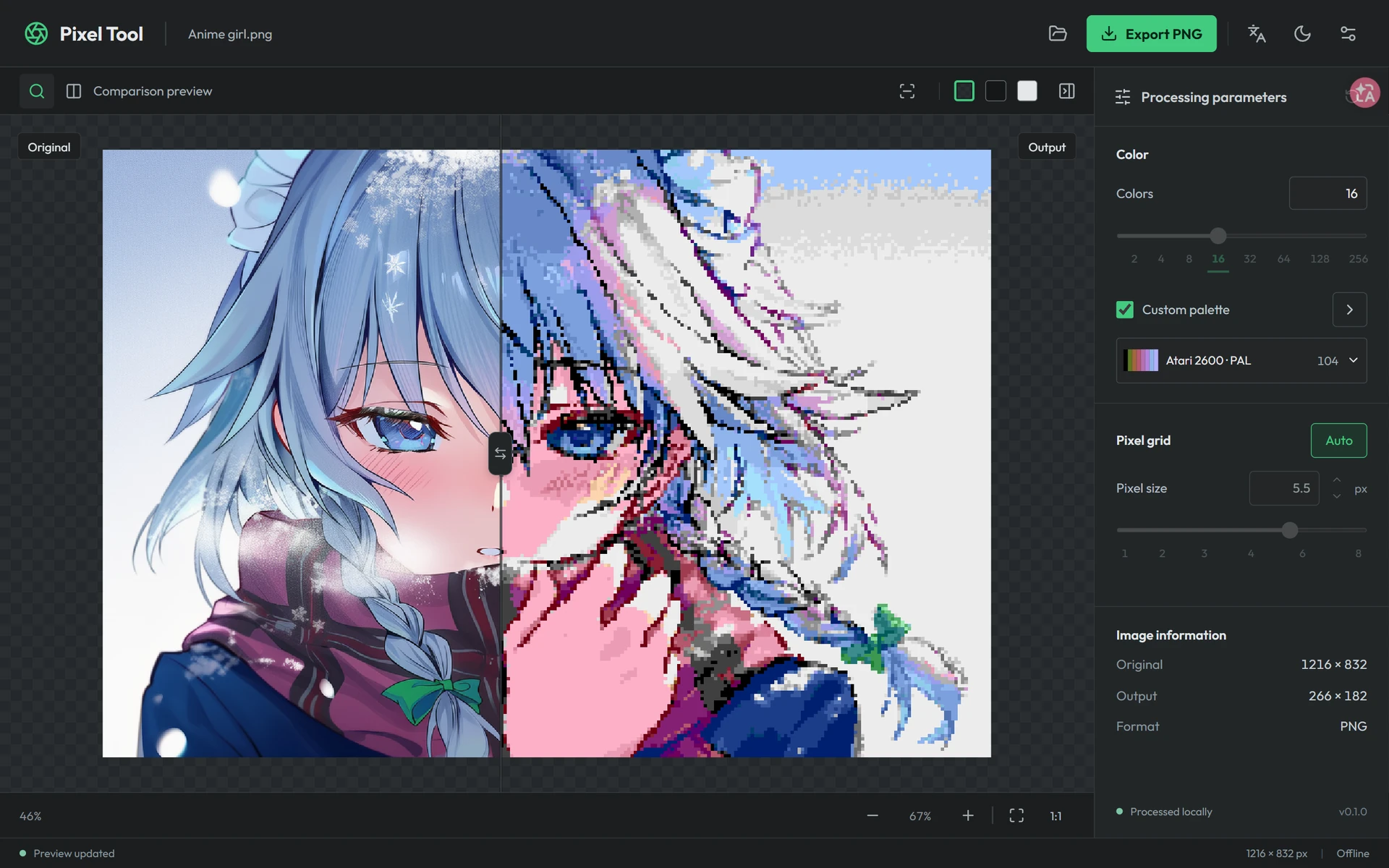
Start with Auto, which estimates a grid from the image's structure, then adjust the pixel size if you want chunkier or finer pixels. In the example below, a pixel size of 5.5 px turns a 1216 × 832 illustration into a 266 × 182 pixel image. A larger pixel size gives fewer, bigger pixels and a more retro look.
3. Pick the colors
Set the color count (from 2 to 256) and, optionally, map the result to a palette. Built-in palettes include classic sets such as PICO-8 and DawnBringer 16 (16 colors each), AAP-64 (64), Atari 2600 PAL (104) and Aurora (256), and you can edit any palette as HEX values. A good starting point is 16 colors; go lower for a stronger retro look and higher for portraits or soft lighting. The palette guide explains how to choose.
4. Compare with the original
Drag the divider across the canvas to see the source and the result side by side, and zoom in to check individual cells. Look for faces, hands and thin lines: they lose detail first and decide whether the conversion works.
5. Export a PNG
Export the result as a PNG at its native pixel size, such as 266 × 182 in the example. Keep it at that size for editing, and enlarge it only with nearest-neighbor scaling when you display it, so the pixels stay sharp.
Tips for a cleaner result
- Change one setting at a time. Pixel size changes shapes; palette and color count change mood. Tuning both at once makes it hard to see what helped.
- Expect a little cleanup. Eyes, outlines and small highlights are worth fixing by hand in a pixel editor after conversion.
- Make the source simpler before converting. Increasing contrast or flattening the background often helps more than any setting.
From a converted image to a game sprite
A converted image is a great base for a game asset. If you want a character you can animate, the AI pixel art generator creates sprites from a prompt, and the pixel art animation generator turns a sprite into idle, attack or spell animations. For converting your own images, use the free online converter or Gridize Desktop.